
Bulk Background Removal: How to Remove Backgrounds From Multiple Images

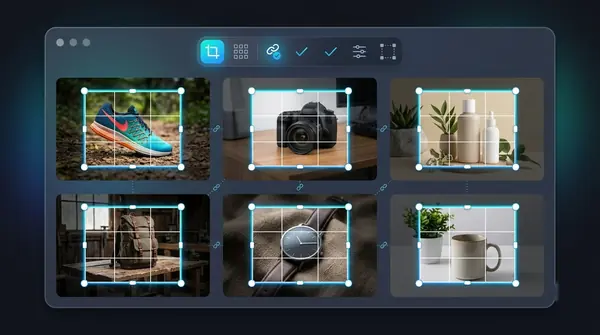
If you have a few images, removing backgrounds one by one is fine. At around fifty, it becomes the whole afternoon. Bulk (or batch) background removal turns that into a queue you start and leave alone.

When you need bulk processing
- An online shop adding or refreshing a catalogue
- A photographer delivering cut-outs for a whole shoot
- A designer preparing assets for a campaign
- An agency doing the same job for several clients
If any of these sounds like you, you also care about three things beyond the cutout itself: consistency across images, throughput, and cost per image.
Your options
| Approach | Good for | Trade-offs |
|---|---|---|
| Online batch tools | Occasional batches, no install | Upload and download time; images leave your device; credits or caps |
| Cloud APIs | Developers automating a pipeline | Per-image cost; engineering time; uploads |
| Desktop apps | Regular large batches, privacy | Install; limited to a platform |
| Scripts using open-source models | Technical users who want control | Setup and maintenance; you handle quality control |
There is no universal winner. The deciding factors are volume, how often you do it, and whether the photos are private. A shop that processes fifty images a month has different needs from one that processes five thousand.
A workflow that scales
1. Prepare consistent source photos
Batch results are only as consistent as the inputs. Shoot on the same background, with the same lighting, at the same distance. A hundred images shot the same way will process far more cleanly than a hundred different ones.
2. Test on a small sample first
Pick five images that cover your range, including the hardest. Try the model options. Only run the full batch once the sample looks right. Re-running a thousand images because the wrong model was selected is the most common waste of time.
3. Group by type if needed
If the batch mixes products and people, split it. One model setting rarely suits both.
4. Run the batch and review every result
Skim all outputs, not just a sample. Look for missing parts, leftover background and halos. Flag the handful that need a second pass.
5. Export consistently
Choose one format and naming pattern for the whole batch. For marketplaces that want a white background, export on white. For design work, export transparent PNG. See PNG vs JPG.
Mistakes to avoid
- Mixing very different images in one run and expecting uniform results
- Skipping the review because "AI did it"
- Overwriting originals. Always keep the source files.
- Resizing first. Remove at full resolution; resize afterwards.
- Forgetting file names, then having no idea which output belongs to which product
Doing it on your Mac
BG Remover Pro is the Mac app we make for this. You drop in a folder of images, process them as one batch with no limit on the number, compare every result with its own before/after slider, and export everything as a single ZIP or straight into a folder. Processing runs on your Mac, nothing is uploaded, and it works offline. It is a one-time purchase rather than a per-image cost, and you can try your first 20 images free. It needs Apple Silicon and macOS 14 or later.
For the hands-on steps, see how to remove the background from multiple images.
Frequently asked questions
How do I remove the background from multiple images at once?
Use a tool with batch processing: drop all the images in, choose one model and output format, run the batch, review the results, then export them together.
Is there a limit on how many images I can process in bulk?
It depends on the tool. Online services often cap files or charge per image. Some desktop apps, including BG Remover Pro, have no cap on the number of images in a batch.
How can I keep bulk results consistent?
Start with consistently photographed images, use the same model and export settings for the batch, and review every output.
Is bulk background removal cheaper than doing it manually?
Almost always, once you pass a few dozen images. The real cost to compare is your own time plus the tool's per-image or flat price.
Can I bulk remove backgrounds and put every product on white?
Yes, if the tool lets you choose a solid background colour on export. See white backgrounds for product photos.

Need to do this for a whole folder?
BG Remover Pro is the Mac app we make. It removes backgrounds in bulk, on your Mac, with nothing uploaded, and you can try 20 images free. See pricing or what it does.