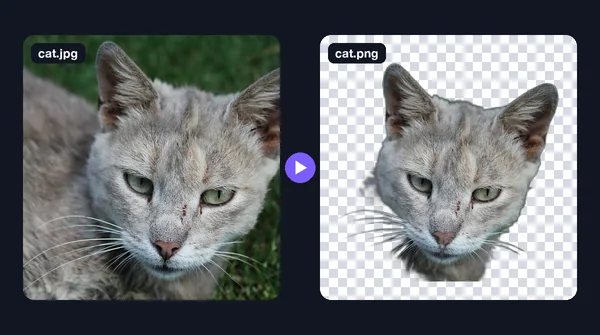

Bulk Convert JPG to Transparent PNG
Part of the guide: Bulk background removal
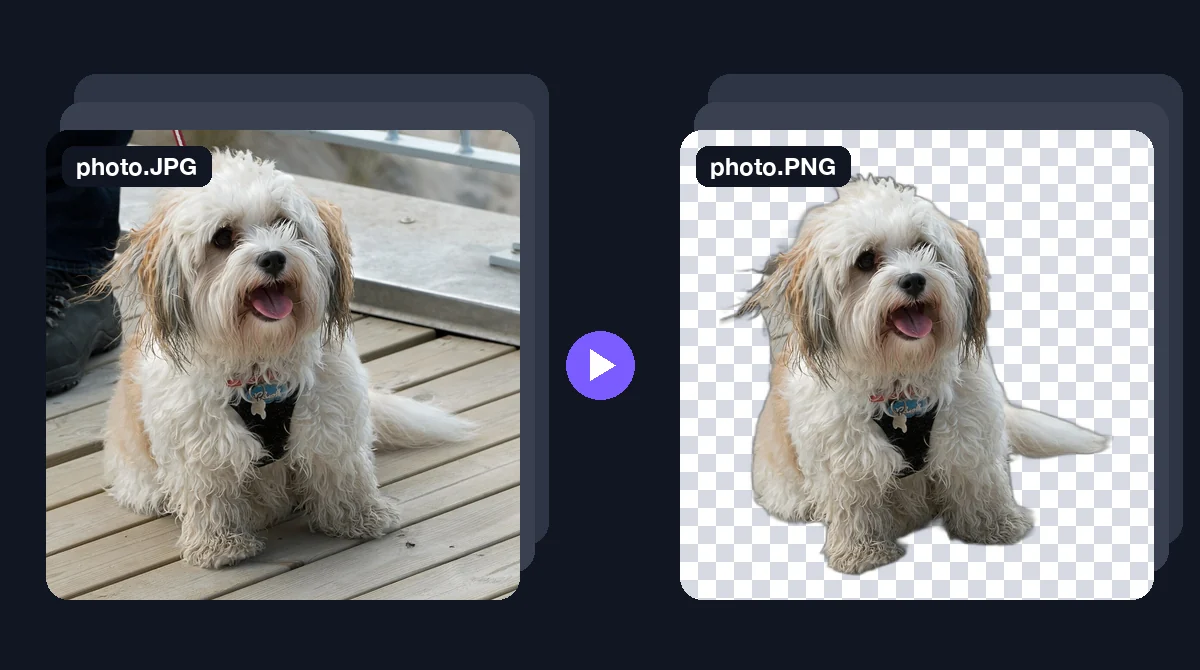
Searching for a "JPG to transparent PNG converter" usually means one of two things: you want to change the file type, or you want the background gone. Batch format converters only do the first. This guide covers the second, for a whole folder at a time. For the single-file explanation, see how to convert a JPG to a transparent PNG.
Why a bulk converter does not give you transparency
A JPG has no transparency channel. Every pixel, including the background, is a solid colour. When a converter turns it into a PNG, it copies those pixels across, so the PNG has the same solid background. The file is now able to hold transparency, but nothing in it is transparent yet.
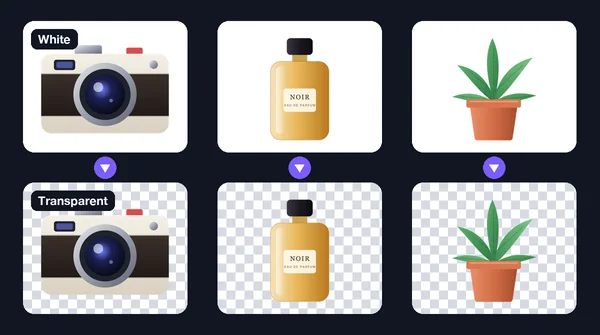
To make the background transparent, something has to decide which pixels are background and clear them. That is background removal, and it is the step a format converter skips.
Two steps, done in one batch
- Remove the background from every image.
- Save the result as PNG (or WebP), so the cleared pixels stay transparent.
A batch background remover does both in a single run.
Workflow for a folder of JPGs
- Copy the JPGs into one folder. Keep the originals somewhere else.
- Use the largest versions you have. JPG compression leaves noise around edges, and small files show it more.
- Run a test on five images that represent the set.
- Set the output to transparent and PNG.
- Process the full batch.
- Check edges on a dark background. JPG sources are more likely to leave a faint fringe.
- Re-run the few that fail with a different model or alpha matting.
On a Mac: BG Remover Pro
BG Remover Pro is our own app. It runs on Apple Silicon Macs with macOS 14 or later, and processes images locally, so the files are not uploaded. It is not the right tool on Windows or an Intel Mac.
Drag in the JPGs, leave the background on Transparent, choose PNG as the export format, and press Process Batch. Each result has a before/after slider. Export the set as a ZIP or into a folder. There is no limit on batch size, and the first 20 images are free to try.
Things that go wrong with JPG batches
- Compression fringe. Blocky JPG artefacts around the subject can become a rough outline. Use higher-quality originals where you can.
- Flattened transparency. If the JPG was made from an image that once had a transparent background, that background was filled with white or black when it was saved. You are removing that fill, not recovering the original transparency.
- Larger files. A transparent PNG is often several times bigger than the JPG it came from. If size matters, export WebP, which also keeps transparency. See PNG vs JPG for transparent images.
Frequently asked questions
Can I convert many JPGs to transparent PNGs at once?
Yes, with a batch background remover set to transparent output and PNG export. A plain JPG-to-PNG converter only changes the format and keeps the background.
Why is my converted PNG not transparent?
Because JPG has no transparency, and converting the format does not remove anything. The background has to be removed first.
Will the PNG files be bigger than the JPGs?
Usually, yes. PNG is lossless. If file size matters, WebP keeps transparency with smaller files.
Do I need to upload my JPGs to a website?
Not necessarily. Desktop apps such as BG Remover Pro process images on your own computer.

Need to do this for a whole folder?
BG Remover Pro is the Mac app we make. It removes backgrounds in bulk, on your Mac, with nothing uploaded, and you can try 20 images free. See pricing or what it does.