
Background Remover: Complete Guide to Removing Image Backgrounds
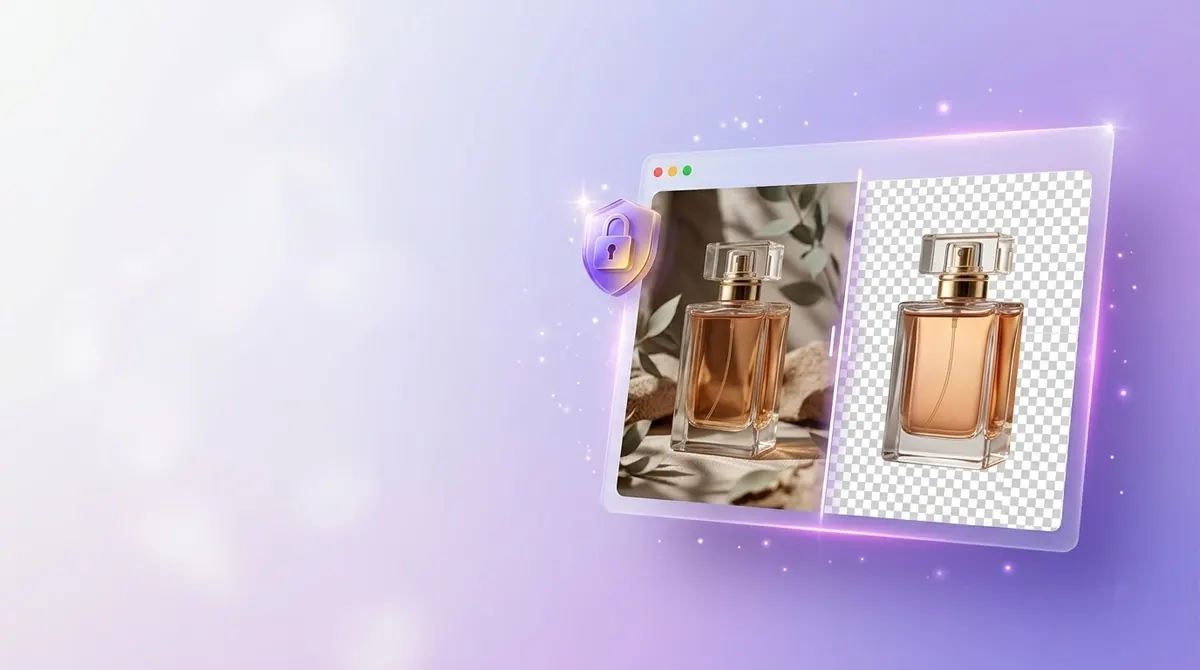
A background remover is any tool that cuts the subject out of a photo and discards the rest. The result is usually a PNG with a transparent background, ready to drop onto a website, a product listing, a poster or a slide.
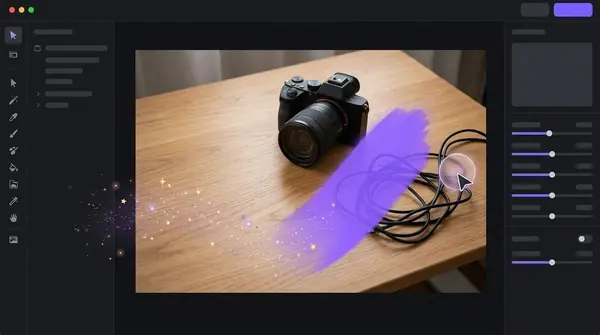
Ten years ago that meant tracing the subject by hand with a lasso or pen tool. Today most people use AI tools that detect the subject automatically. This guide explains how those tools work, the four main kinds you can choose from, and how to get clean results.
How a background remover works
Every background remover has to answer one question for each pixel: does it belong to the subject or the background? There are three common ways to get the answer.
- Manual selection. You trace the subject with a lasso, pen or magic-wand tool. Precise, but slow, and it takes skill.
- AI segmentation. A neural network predicts a mask of the subject. This is what almost every "AI background remover" does, and it takes seconds. See how AI background removal works.
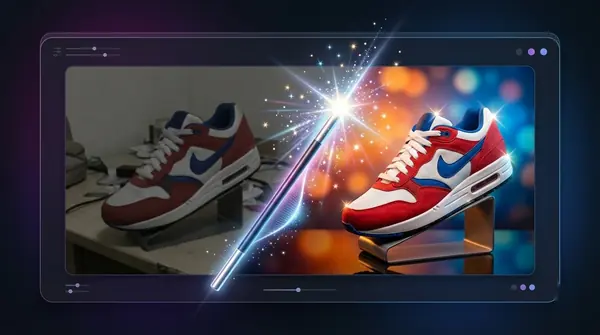
- Matting. For hair, fur and other soft edges, a matting step refines the mask so edge pixels are partly transparent instead of fully on or off. This is what stops cutouts from looking like they were cut with scissors.
The four kinds of background remover
| Type | Best for | Watch out for |
|---|---|---|
| Web tools | One-off images, no install | Your image is uploaded to a server; free tiers often cap resolution or count |
| Built-in OS features | Quick, casual cutouts | Usually one image at a time, limited control |
| Desktop apps | Large batches, privacy, no per-image fees | Install required; platform-specific |
| Pro editors (Photoshop and similar) | Difficult images, full control | Learning curve and subscription cost |
Which one is right depends on how many images you have and how sensitive they are. One portrait for a profile picture? Anything works. Four hundred product photos for a catalogue? You want batch support and a predictable cost. See bulk background removal for that case.
How to choose
Ask these five questions before you commit to a tool:
- How many images? Under ten, convenience wins. Over a hundred, batch processing and a flat price matter far more than anything else.
- Are the photos private? Client work, unreleased products and family photos are a reason to prefer tools that process on your own computer.
- How hard are the images? Hair, fur, glass, smoke and veils are difficult for every background remover. If these are your main subject, test before you buy.
- What output do you need? Transparent PNG is standard. If you also need WebP, JPEG with a white background, or a custom backdrop, check the export options.
- What does it really cost? Compare per-image credits, subscriptions and one-time prices against your real volume.
Step-by-step: a clean cutout
- Start with a good photo. Strong contrast between subject and background is the single biggest factor in quality. A subject that is sharp and well lit cuts out better than a blurry one.
- Run the removal. Use a model that fits the subject: a people or portrait model for people, a general model for objects.
- Check the edges at 100%. Zoom in. Look for leftover background in gaps (between arms and torso, handles), halos along the edge and missing fine detail.
- Fix what is wrong. Re-run with a different model or turn on matting for hair. Remove leftover distractions with an object remover.
- Export in the right format. PNG for transparency, JPEG only if you are placing the subject on a solid colour. See PNG vs JPG for transparent images.
Common mistakes
- Exporting a transparent image as JPEG. JPEG has no transparency, so the transparent area becomes a solid colour, usually white or black.
- Judging the result on a white screen. A pale halo is invisible on white and obvious on a dark background. Check cutouts on both.
- Resizing before removing. Remove the background at full resolution, then resize.
- Over-trusting "one click". Automatic is fast, not infallible. Always look at the result.
Where BG Remover Pro fits
BG Remover Pro is the Mac app we make. It removes backgrounds on your Mac with nothing uploaded, handles batches of any size, has People, Portrait, Clothing and general models plus alpha matting for hair, and exports PNG, JPEG or WebP. You can process your first 20 images free before deciding. It runs on Apple Silicon Macs with macOS 14 or later, so if you are on Windows, an iPhone or an Intel Mac, a different tool is the right choice.
Frequently asked questions
What is a background remover?
A background remover is a tool that separates the subject of an image from its background and outputs the subject, usually as a PNG with a transparent background.
What is the best background remover?
It depends on volume, privacy needs and how difficult your images are. For one-off images a web tool or your operating system's built-in feature is fine. For hundreds of images, a batch-capable desktop app with a flat price is usually better.
Do background removers work on hair and fur?
Modern ones do reasonably well, especially with a matting step, but fine hair against a busy background is still the hardest case. Always check the edges at full size.
Can I remove a background and keep it transparent?
Yes. Export as PNG or WebP, which both support transparency. JPEG does not.
Is it safe to upload photos to an online background remover?
It depends on the service. Your image is sent to someone else's server, so read how long they keep it and whether it is used for training. For sensitive photos, a tool that processes on your own computer avoids the question.

Need to do this for a whole folder?
BG Remover Pro is the Mac app we make. It removes backgrounds in bulk, on your Mac, with nothing uploaded, and you can try 20 images free. See pricing or what it does.