
Remove Background From an Image: The Right Method for Each Photo
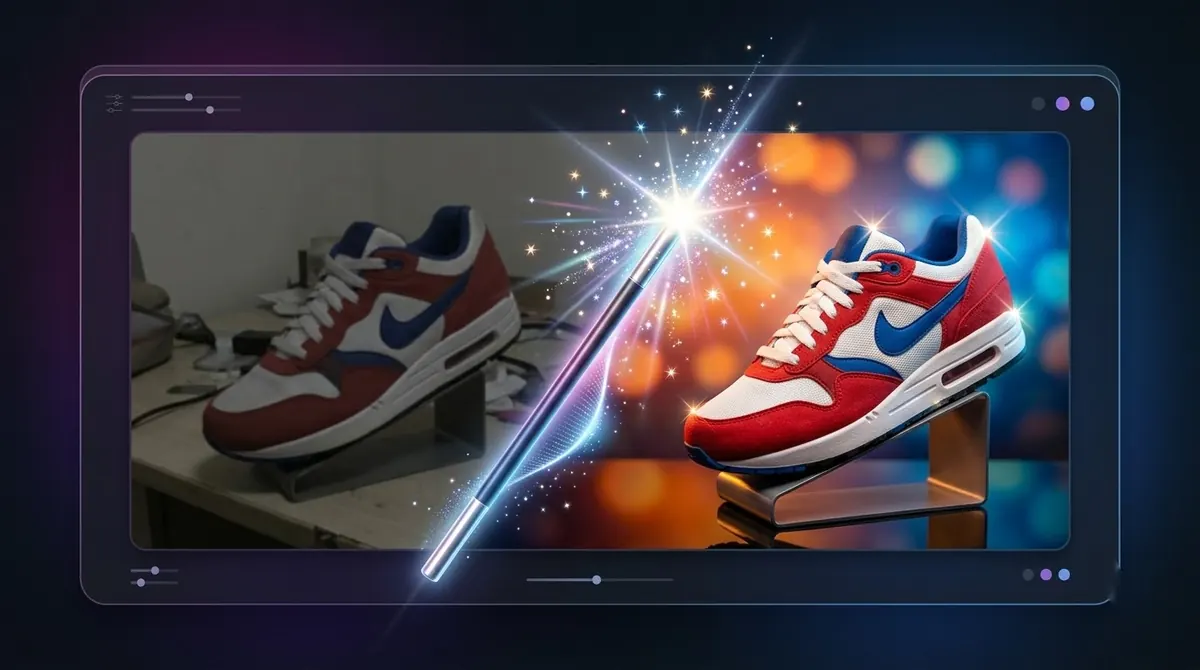
Most guides to removing a background show one tool and one photo. In practice the photo decides the method. A studio product shot, a portrait with flyaway hair and a company logo on a white box each need a different approach.
This guide is organised by what is in the image. For the step-by-step walkthrough, see how to remove the background from an image.
People and portraits
Best method: an AI tool with a people or portrait model, plus matting for hair.
People are what most AI models are trained to handle well. Problems appear at flyaway hair, semi-transparent clothing and hands holding objects. Turn on matting if the tool has it, and zoom in on the shoulders and hairline when you check the result.
Products on a plain background
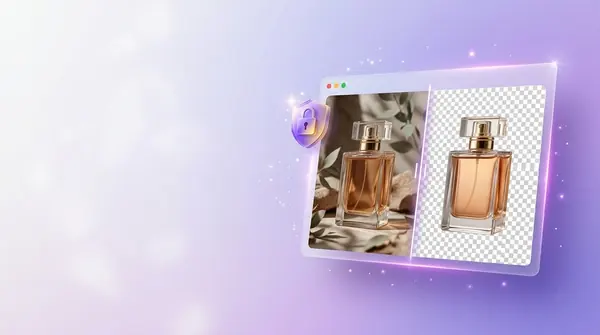
Best method: an AI tool, then export on white or transparent.
Studio product photos are the easy case. If you have many of them, process them as a batch. See product background removal for category tips (shoes, jewellery, cosmetics and more).
Logos, icons and flat graphics
Best method: colour-based selection, not AI.
If the background is one flat colour, select that colour (a magic wand or "remove colour" command) and delete it. This is exact, fast and does not smooth away sharp corners the way an AI mask sometimes does. If you have the original vector file, use that instead of cutting out a raster copy.
Screenshots and UI
Best method: crop, or use the colour-based selection above.
Rounded window corners and drop shadows are the hard part. Take the screenshot with the window-only option so the shadow is built in with real transparency, rather than cutting it out afterwards.
Animals and fur
Best method: AI with matting, checked at 100%.
Fur has the same problem as hair, and a dark animal against a dark background is harder than a light one. Expect to spend a minute checking edges.
Glass, water, smoke and veils
Best method: manual masking, or accept a compromise.
These subjects are partly transparent, so a single hard cut-out is wrong by definition. Every automatic tool struggles. For product work, a common workaround is to photograph glass items on a plain backdrop with controlled lighting, then place them on a similar-toned background instead of full transparency.
Quick reference
| Image type | Best approach | Main risk |
|---|---|---|
| Person or portrait | AI, people or portrait model, matting | Hair edges |
| Product on plain background | AI, batch if many | Hard shadows kept as part of the subject |
| Logo on flat colour | Colour-based selection | Jagged edges on diagonal lines |
| Animal | AI with matting | Fur edges |
| Glass or liquid | Manual mask | Partial transparency |
| Busy, low-contrast photo | AI plus manual touch-up | Subject blends into background |
Before you start: three checks
- Use the highest-resolution original. Do not start from a compressed copy that has been through chat apps or social media.
- Decide the output. Transparent PNG, solid colour or a new backdrop. The edge treatment differs.
- Test one image first before you run a hundred.
Frequently asked questions
What is the easiest way to remove a background from an image?
For most photos, an automatic AI background remover. Upload or open the image, let it detect the subject and export a PNG.
How do I remove a background and keep the edges sharp?
Start from a high-resolution image, use a model suited to the subject, and check the edges at 100%. For flat logos, a colour-based selection keeps corners sharper than AI.
Can I remove the background from a low-quality image?
You can, but edges will be soft or jagged because there is little detail to work with. Use the best original you have.
Why is part of my subject missing after removal?
The tool treated it as background, often because it was similar in colour or tone to what was behind it. Try another model, or touch up the mask.

Need to do this for a whole folder?
BG Remover Pro is the Mac app we make. It removes backgrounds in bulk, on your Mac, with nothing uploaded, and you can try 20 images free. See pricing or what it does.