

How to Make Image Backgrounds Transparent in Bulk
Part of the guide: Transparent background
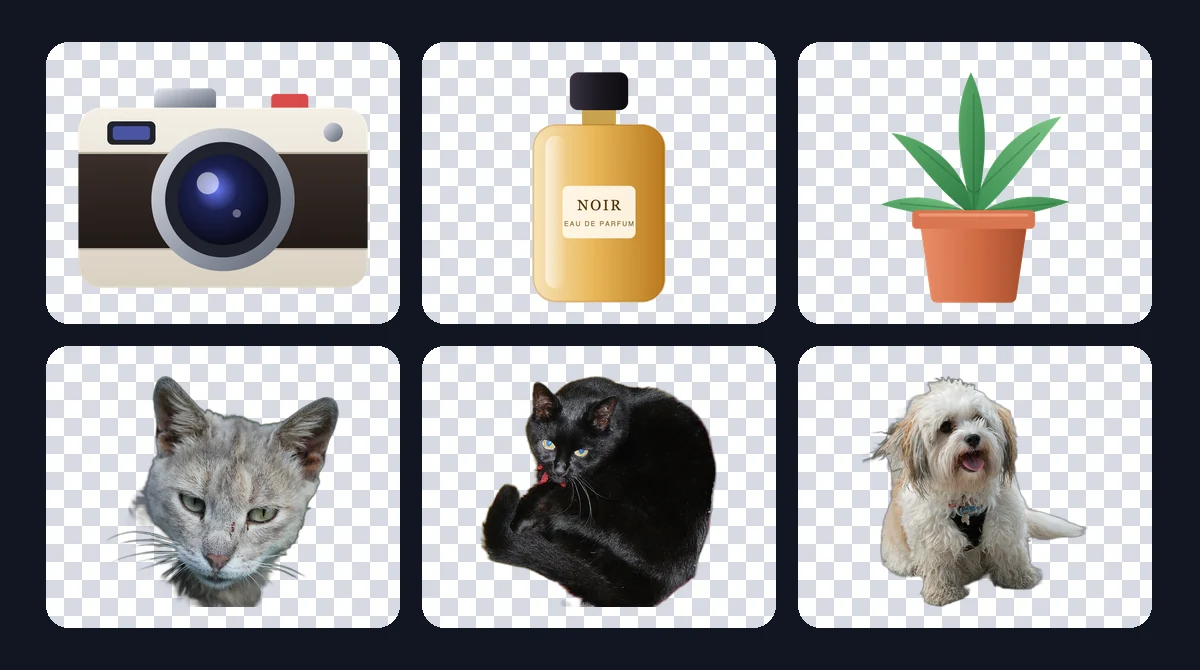
A transparent background lets the same image sit on any page, slide or design without a box around it. When you need that for a whole set (a product range, a team page, a sticker pack), doing it one image at a time is the slow part. This page covers the bulk version. For what transparency is and how it is stored, start with transparent background.
What a transparent image needs
Two things, for every file in the batch:
- The background pixels are cleared. That is the background-removal step.
- The file format can store transparency. PNG and WebP can. JPG cannot, and fills the transparent area with a solid colour when saved.
If either is missing, you get a solid background.
Bulk workflow
- Gather the images in one folder, grouped by type (products, people, logos).
- Pick one set of settings per group. A model that suits portraits may not suit products.
- Test on a handful first. Include the hardest images: fine hair, glass, a subject the same colour as the background.
- Set the background to transparent and the format to PNG (or WebP if file size matters).
- Process the batch.
- Review each result on light and dark backgrounds. A halo that is invisible on white shows clearly on dark grey, and the reverse.
- Fix exceptions individually and export the set.
Doing it on a Mac
BG Remover Pro is our own app, so this is a disclosure. It runs only on Apple Silicon Macs with macOS 14 or later, and processes images on the Mac instead of uploading them.
Drag the folder into the queue, keep Transparent as the background, choose PNG or WebP, and press Process Batch. Choose the model that fits the group (general, lite, people, clothing or portrait) and turn on alpha matting for hair and fur. Review with the before/after slider on each card, then export a ZIP or save to a folder.
Checking a batch quickly
You do not need to inspect every pixel of every image, but you should look at every image:
- Scan the thumbnails first for obvious failures: missing parts, leftover background, a prop that stayed.
- Zoom on the edges of a few images from each group, especially hair, fur and transparent objects.
- Place two or three results in their real destination (the web page, the slide template) before exporting the rest.
Where bulk transparent images are used
| Use | Tip |
|---|---|
| Online store catalogue | Keep the same framing and padding across products; see batch cropping on a Mac |
| Team or speaker pages | Use the portrait or people model for consistent hair edges |
| Logos for a partner wall | Start from vector files if you have them; see making a logo background transparent |
| Presentations and design assets | Export PNG for maximum compatibility |
| Stickers and overlays | Check edges on the darkest background they will appear on |
Frequently asked questions
How do I make the background transparent on many images at once?
Use a batch background remover with transparent output, export as PNG or WebP, and review each result before using it.
Which formats keep a transparent background?
PNG and WebP. JPG does not support transparency.
Why does my transparent image show a white or black box?
Either the background was not removed, or the file was saved as JPG, which fills transparency with a solid colour.
Do I have to check every image in a bulk batch?
Look at every image at thumbnail size, and zoom into the edges of a sample from each group. Automatic tools still make occasional mistakes.

Need to do this for a whole folder?
BG Remover Pro is the Mac app we make. It removes backgrounds in bulk, on your Mac, with nothing uploaded, and you can try 20 images free. See pricing or what it does.