
How to Make Many Logos Transparent at Once
Part of the guide: Transparent background
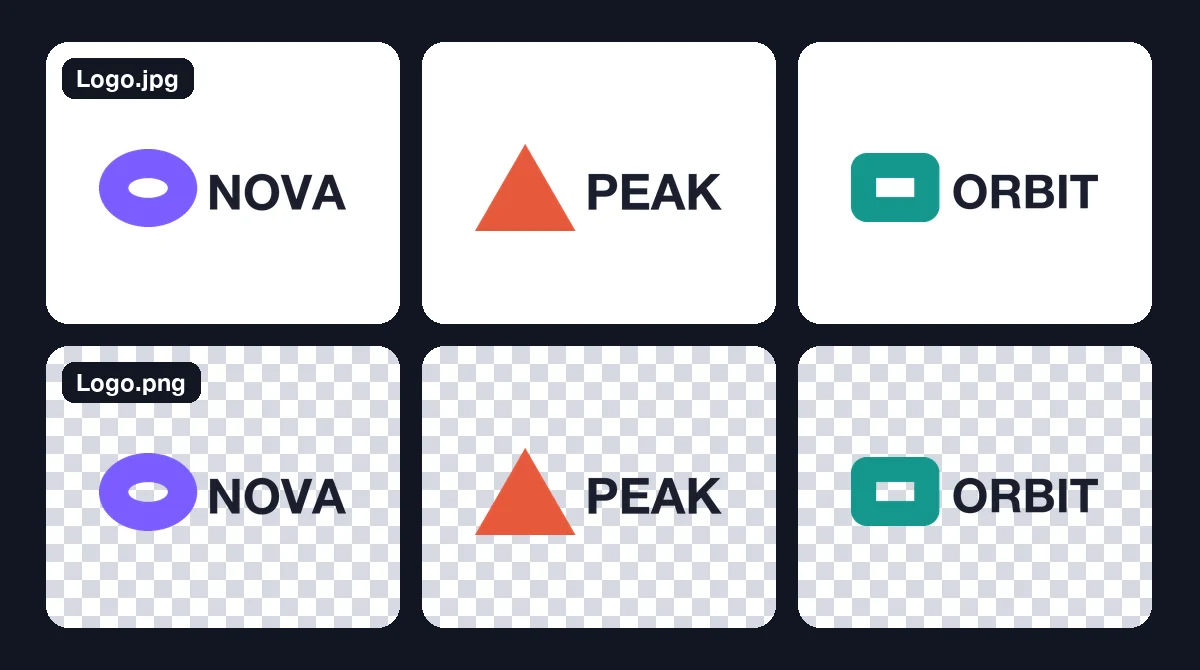
Bulk logo jobs come up all the time: a sponsor wall, a "trusted by" strip, a partner page, a slide deck of client logos. The logos usually arrive as a mix of files, many with white boxes around them. This guide covers getting the whole set transparent. For a single logo in more depth, see how to make a logo background transparent.
Step 1: Sort before you process
Not every logo needs background removal.
- Vector files (SVG, AI, EPS, PDF) are usually already transparent. Export or use them directly. They also scale without losing sharpness.
- PNG with a transparent background is already done. Open it on a dark background to confirm.
- JPG, or PNG with a solid background, needs the background removed.
Ask the owners for vector files before you start. One email often saves the hardest part of the job.
Step 2: Batch-remove the rest
For the logos that need it:
- Collect them in one folder at the largest size available.
- Run a test on a few, including any logo with white elements, thin text, or gaps inside letters (the middle of an "O" or "A").
- Set the background to transparent and export as PNG.
- Process the batch.
Logos are flat graphics, and some are hard for AI models trained mainly on photos. Watch for:
- White parts of the logo removed along with the white background.
- Enclosed gaps not cleared, leaving a white patch inside a letter.
- Thin lines and small text softened at the edges.
Step 3: Check every logo on light and dark
Put each logo on a white background and on a dark one. Logos with dark text can disappear on dark backgrounds; that is a design problem, not a removal error, and the fix is a light variant of the logo from the owner.
Doing it in BG Remover Pro
BG Remover Pro is our own app (disclosure). It runs on Apple Silicon Macs with macOS 14 or later. Drag the logo files in, keep the background on Transparent, export as PNG, and process the batch.
Turn auto-enhance off for logos. It adjusts brightness, contrast, sharpness and saturation, which is helpful for photos but shifts brand colours. Use the before/after slider to compare each result, use Erase to clean up leftovers, and re-run the odd failure with a different model.
Make the set look consistent
Transparent logos of different sizes still look messy side by side.
- Trim and pad consistently. Crop each logo close to its edges, then give them the same padding. See batch cropping on a Mac.
- Match visual weight, not width. A wide wordmark and a square icon at the same width look unbalanced; size by eye or by height.
- Use one format. PNG for the set, or SVG where every logo has a vector version.
Frequently asked questions
How do I make multiple logos transparent at once?
Use vector originals where you have them, then run the remaining JPG and PNG logos through a batch background remover with transparent PNG output. Check each one on light and dark backgrounds.
Why did the background remover delete part of my logo?
Parts of the logo were the same colour as the background, often white text or shapes. Re-run that logo with a different model, or ask for a vector file.
Should I save transparent logos as PNG or JPG?
PNG. JPG cannot store transparency. SVG is better still if the logo is available as a vector.
Why does my logo look wrong on a dark background?
Usually the logo itself is dark. That needs a light version of the logo, not more background removal.

Need to do this for a whole folder?
BG Remover Pro is the Mac app we make. It removes backgrounds in bulk, on your Mac, with nothing uploaded, and you can try 20 images free. See pricing or what it does.