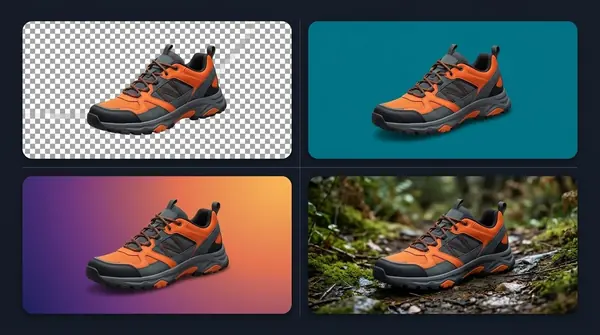

How to Put Product Photos on a White Background in Bulk
Part of the guide: Product background removal
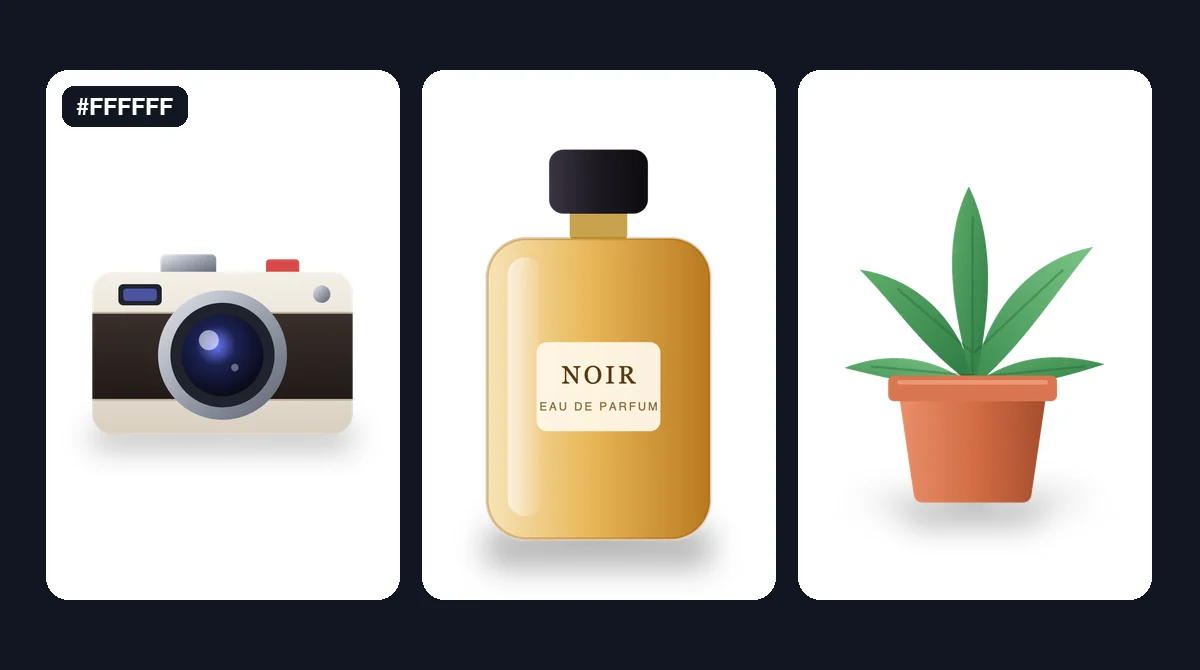
A product catalogue on a pure white background looks clean, loads fast and meets the main-image rules of many marketplaces. Doing it image by image is what makes it slow. This guide covers doing the whole catalogue in batches. For the shooting and single-image steps, see how to create white background product photos.
What "white background" should mean
- Pure white is #FFFFFF (RGB 255, 255, 255). Off-white or light grey reads as a slightly dirty background next to other listings.
- The background should be uniform to the edges of the image, with no shadow patches or vignetting.
- Marketplaces publish their own rules for main images: background colour, how much of the frame the product fills, and minimum size. They change, so check the current requirements in your seller account rather than relying on a blog.
Bulk workflow
- Shoot for the batch. Same angle, same distance, even light. Consistent source photos give consistent results.
- Group by product type. Shiny, transparent and white products are harder; give them their own group.
- Test five images per group.
- Set the background to a solid colour, #FFFFFF.
- Export as JPG. With a solid white background there is no transparency to keep, and JPG files are much smaller.
- Process the batch.
- Crop to one ratio with consistent padding (1:1 is common for listings). See batch cropping on a Mac.
- Review and fix exceptions.
Doing it in BG Remover Pro
BG Remover Pro is our own app (disclosure). It runs only on Apple Silicon Macs with macOS 14 or later, and images stay on your Mac.
- Drag the product photos into the queue (PNG, JPG, JPEG or WebP).
- Set the background to solid colour and enter
#FFFFFF. - Choose JPEG export.
- Pick the general model for most products, or clothing for apparel; turn on alpha matting for fluffy or furry items.
- Press Process Batch, review with the before/after slider, then use Crop Batch with Auto Detect Subject to frame each product.
- Export as a ZIP or into a folder.
Turn auto-enhance off if product colours must match the real item. Auto-enhance raises brightness, contrast, sharpness and saturation by default, which can make a product look different from what the customer receives.
The review routine
| Check | Why |
|---|---|
| Edges on a zoomed view | Halos and leftover background are the most common faults |
| White and light products | The model may trim parts that are close to white |
| Glass and clear plastic | The old background shows through; may need a reshoot |
| Removed shadows | A product with no shadow can look like it floats; add a subtle one if your rules allow |
| Product size in frame | Consistent padding makes the catalogue look professional |
Keep honest listings
A white background is a presentation choice. Do not remove details that matter to the buyer (scratches on a used item, included accessories), and keep the colours true.
Frequently asked questions
How do I put many product photos on a white background at once?
Batch-remove the backgrounds, set the new background to solid #FFFFFF, export as JPG, then crop the set to one ratio. Review each image before uploading.
Should white background product photos be JPG or PNG?
JPG is usually best: the background is solid, so there is no transparency to keep, and the files are smaller. Check your marketplace's accepted formats.
Why does my white background look grey next to other listings?
It is probably not pure white. Use #FFFFFF as the background fill rather than relying on a white backdrop in the photo.
Do marketplaces require a pure white background?
Many do for the main image, but the rules differ and change. Check the current image requirements in your seller account.

Need to do this for a whole folder?
BG Remover Pro is the Mac app we make. It removes backgrounds in bulk, on your Mac, with nothing uploaded, and you can try 20 images free. See pricing or what it does.